How to use KongTrades
Everything on one page: install it, log your first trade, bring in your history, check your edge, put a bot on trial, and keep a backup.
1Install the app
KongTrades installs straight from your browser, with no app store and no account. It gets its own icon, opens full screen and works with no internet.
2Set up in one minute
The first screen asks for four things: your name (optional), your currency, your starting capital and your max risk per trade in % (1% is the classic rule). You can change all of them later in Settings.
Want to look around first? Tap Explore with demo data: four months of sample trades with every screen of every plan open.
3Log a trade
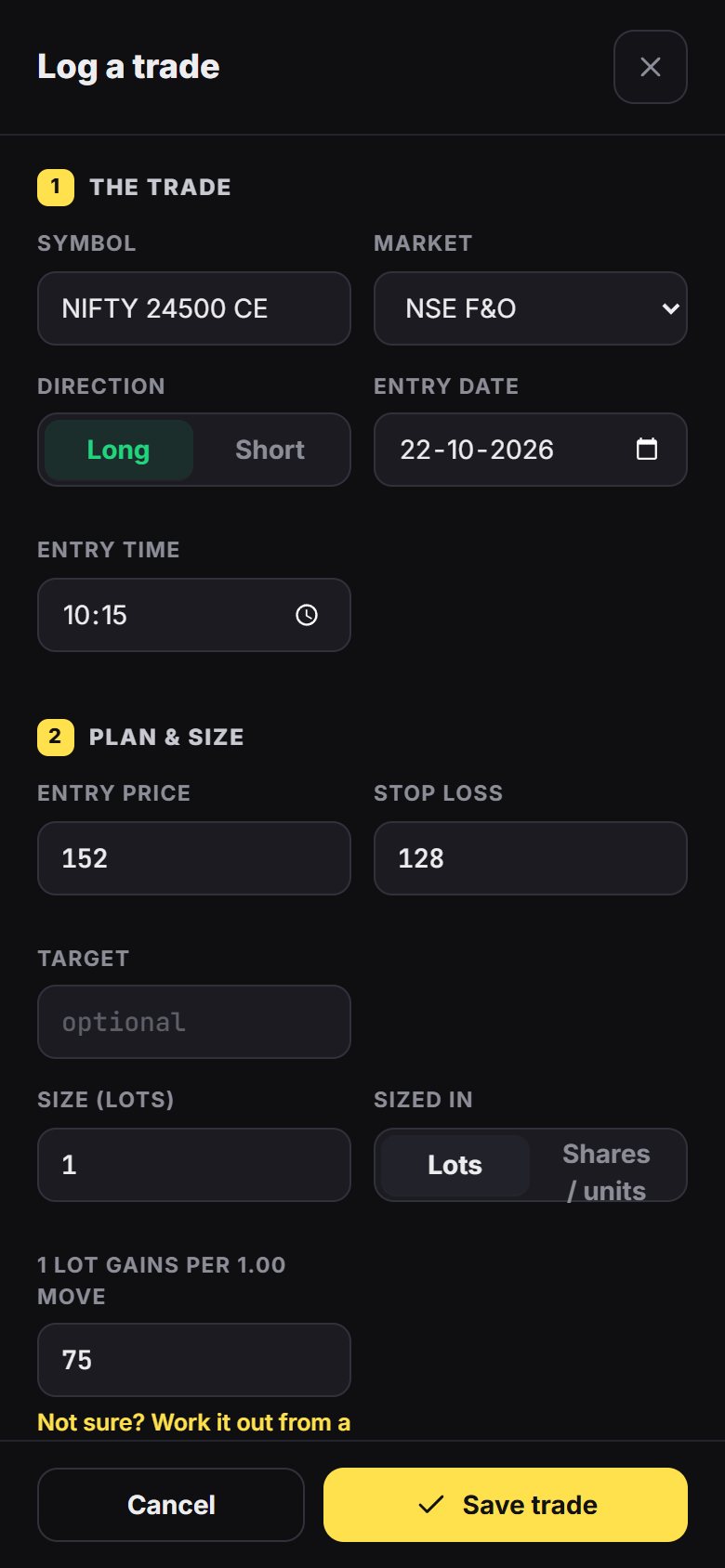
- Tap Log trade (the yellow + on a phone).
- The trade: symbol, market, long or short, date and time.
- Plan & size: entry, stop loss and target (optional). The stop loss is what turns your result into R, so the edge check needs it.
- Enter your size in Lots or Shares / units. For lots, also enter how much 1 lot gains per 1.00 move (gold on MT5: 100). Not sure? Tap Work it out from a trade.
- Your risk rule shows the biggest size that fits it. Tap Use to take it.
- Result: closed or still open, and your exit. Only know the profit or loss? Switch on I only know the P&L.
- Review: setup, did you follow your plan, mistakes, emotion, confidence, notes and a chart screenshot. This is the part that makes you better.
4Import your history
Open Import & backup. Imports come with any paid plan; on Free you log trades by hand.
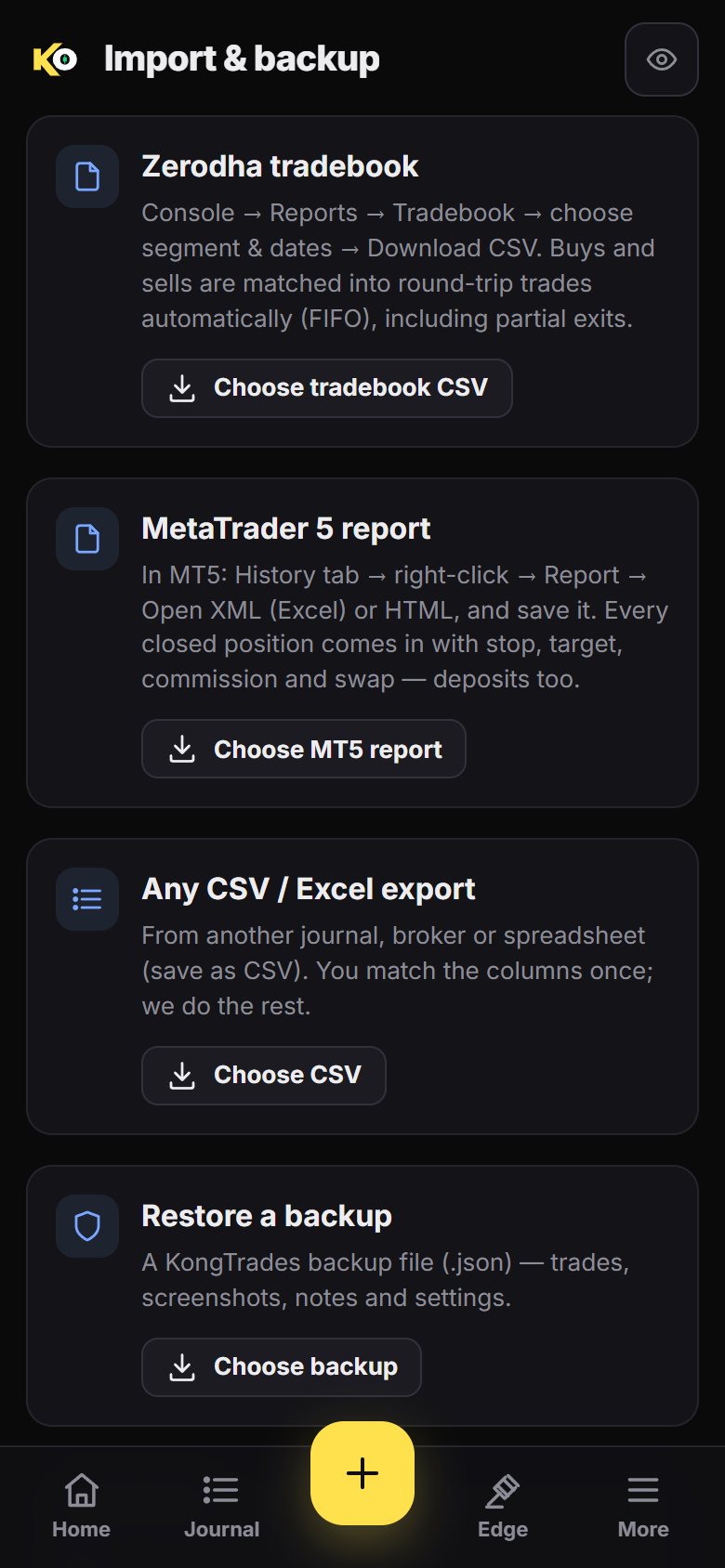
Zerodha
- On console.zerodha.com: Reports → Tradebook, choose the segment and dates, then Download CSV.
- In KongTrades: Zerodha tradebook → Choose tradebook CSV. Buys and sells are matched into round-trip trades (first in, first out), partial exits included.
- A tradebook has no stop losses. Add stops to your important trades to unlock R and the edge check.
MetaTrader 5
- In MT5, open the History tab (View → Toolbox), right-click, then Report → Open XML (Excel) or HTML, and save the file.
- In KongTrades: MetaTrader 5 report → Choose MT5 report. Every closed position comes in with its stop, target, commission and swap, and deposits too.
Any other broker or journal
- Export or save your trades as a CSV file.
- In KongTrades: Any CSV / Excel export → Choose CSV, then match the columns once.
5Read your edge check
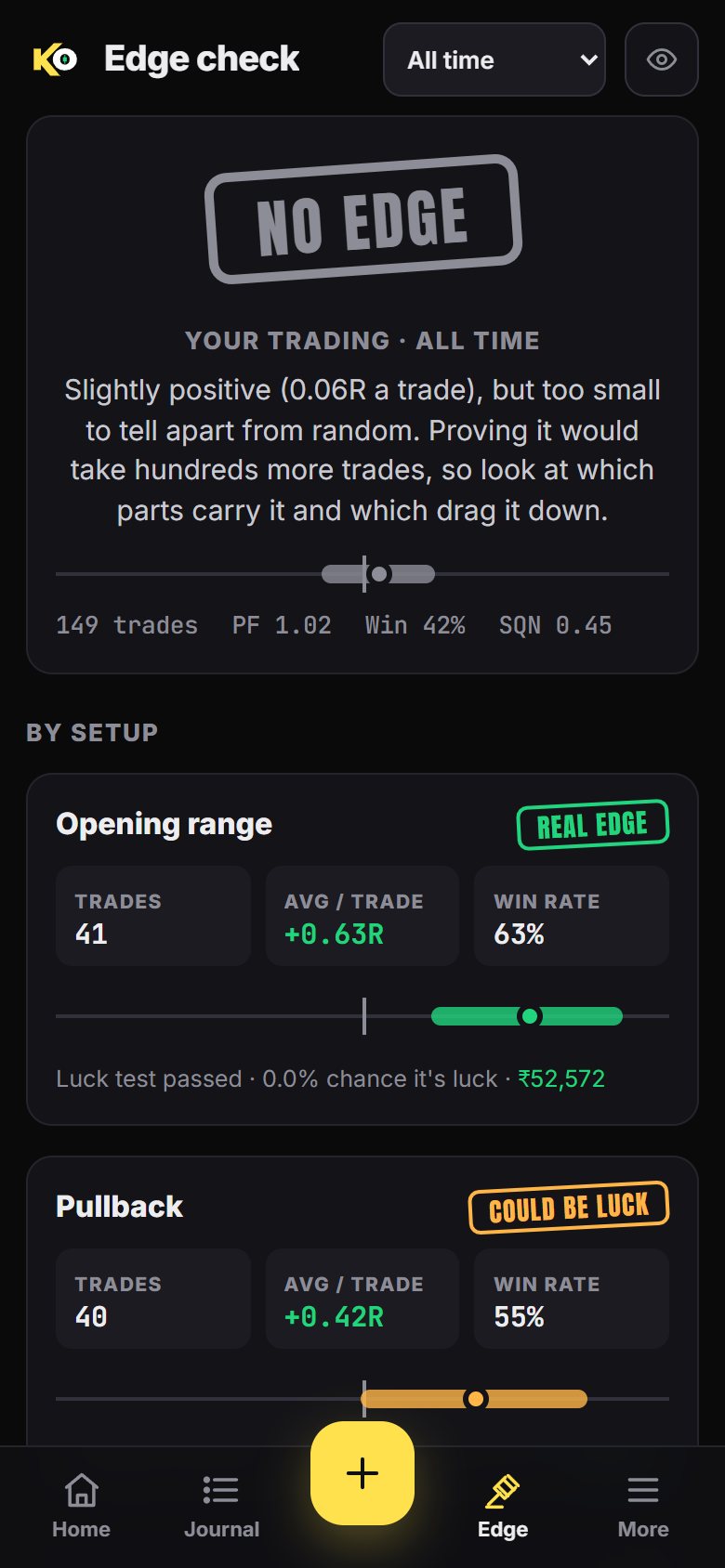
Open Edge check. KongTrades replays your own trades 2,000 times and stamps every setup, time of day and side:
- Real edge even the unlucky replays stay above zero
- Could be luck profitable so far, but it could still be chance
- No edge too close to zero to tell apart from random
- Losing even the best-case replays lose money
- Too early fewer than 20 trades
Each check needs trades with a stop loss and at least 20 of them. Free shows your overall edge check; the check for every setup, time and side comes with any paid plan. Then open Insights to see what each mistake cost you. All of this describes your past trades; it doesn't predict the future.
6Put a bot on trial in Bot Court
- In MT5, open the Strategy Tester and run the bot on Every tick based on real ticks, from as far back as you can until today.
- Open the Backtest tab, right-click, then Report → Open XML (MS Office Excel). Save the file.
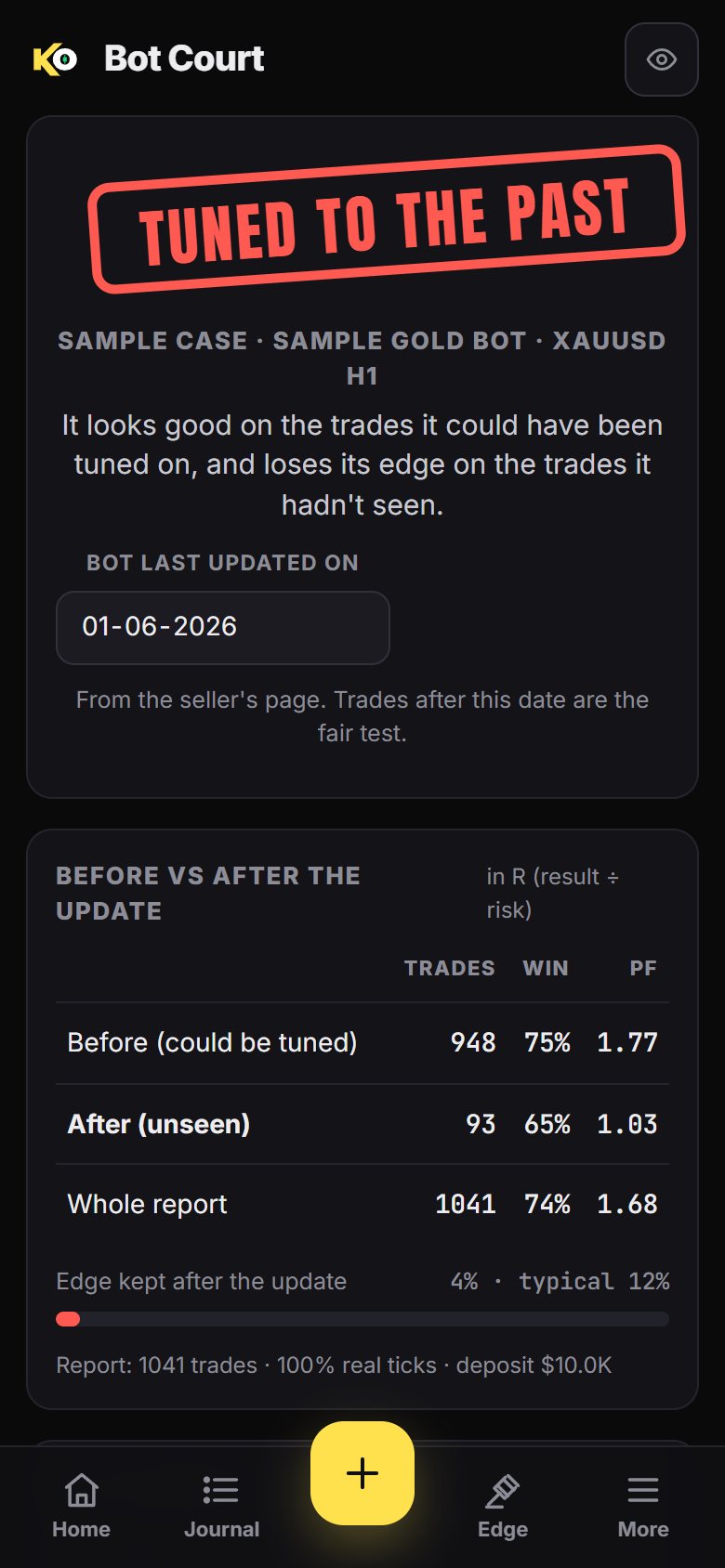
- Find the bot's last update date on the seller's page (for example "Version 5.1 · 3 October 2026").
- In KongTrades: Bot Court → Open a tester report, then enter that date.
Only the trades after the last update are a fair test: everything before it could have been tuned to look good. KongTrades also runs a luck test and checks tick quality, stop losses, grids and martingale, then stamps the case:
- Holds up it kept a real edge on trades it had never seen
- Not proven no update date yet, too few trades after it, or no proven edge
- Tuned to the past good on the tuned trades, loses its edge on the unseen ones
- Dangerous no stops or doubling up: one bad run can wipe the account
Your first case is free, Pro judges 3 a month and Elite as many as you like. Bot Court reads the report you load. It doesn't review any seller and it isn't financial advice. See a sample case →
7Back up & move to a new phone
Your journal lives only on your device, so you are the backup.
- Import & backup → Download full backup. One file holds your trades, screenshots, notes, settings and your licence.
- On the new phone or computer, install KongTrades, then Import & backup → Restore a backup. Restoring is free on every plan.
- Need a spreadsheet? Export this account as CSV on the same screen.
Stuck on a step? Message @nochoicetrading on Instagram or see the contact page.